
Editor
In-vehicle orbit-camera keyframe editor. Author new sequences without touching JSON.
Overview
/tafkedit (or Open Sequence Editor in /tafk) is the single surface for authoring, browsing, renaming, editing, and deleting every sequence that applies to the current vehicle. Requires the tlib.admin ACE.
A sequence is just two keyframes — a start and an end camera position — plus a name, scope, and DOF settings. The editor shows the full list on the left, inline detail editor on the right, and a game-engine viewport in between.
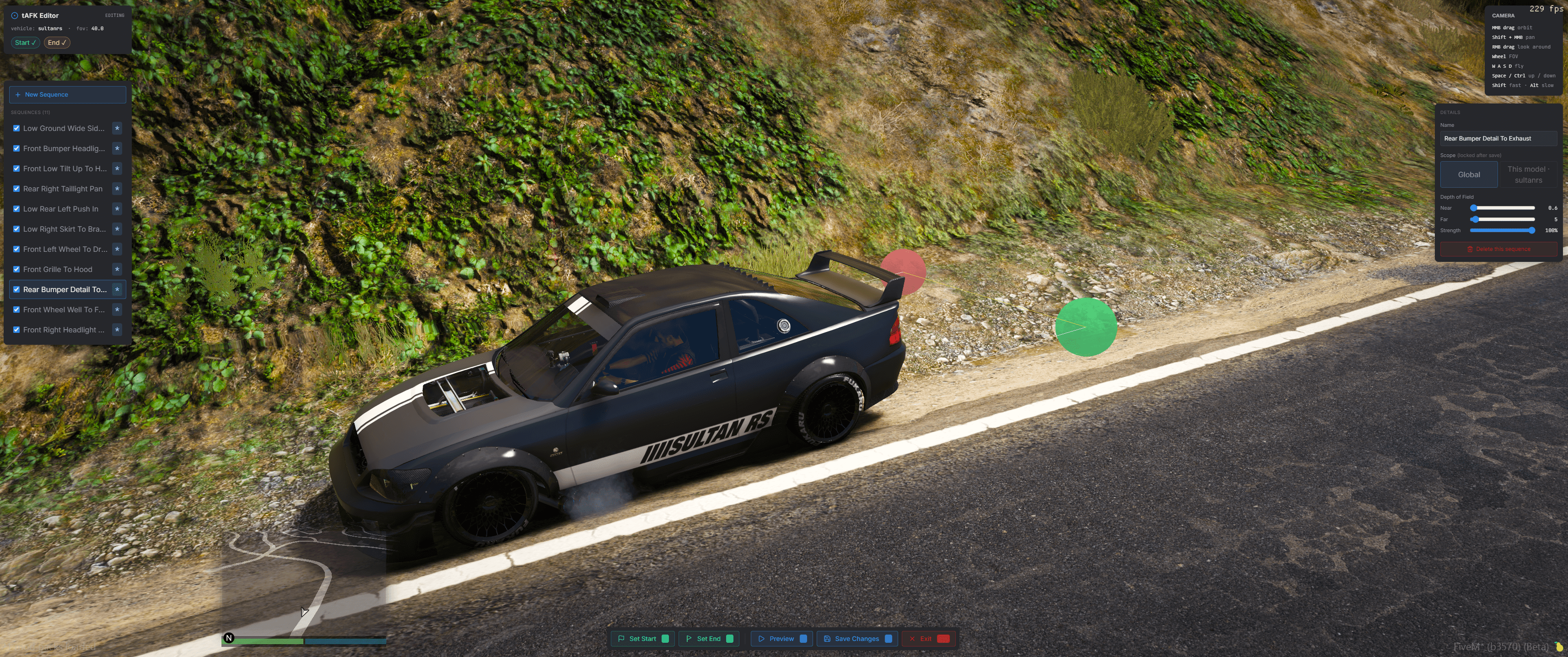
Not a 3D scene
tAFK's editor renders through the real game camera — the vehicle, lighting, and environment are in-engine. The NUI overlays a sequence list, details form, and action bar on top. There's no separate 3D viewport to sync.
Layout
- Left panel — sequence list. Every sequence that applies to your current vehicle (global
*+ per-model). Click a row to load it for editing, click the checkbox to toggle enabled without loading. + New Sequence at the top. - Right panel — details of whichever sequence is currently loaded. Name, scope, DOF sliders, Delete button. Scope is editable only while the draft hasn't been saved yet (new drafts).
- Bottom bar — Set Start / Set End / Preview / Save Changes / Exit. Keyboard shortcuts
1 / 2 / 3 / 4 / Esc. - Top-left header — vehicle + FOV + clickable
Start ✓/End ✓chips that snap the camera to either captured keyframe. - Top-right card — camera control reference.
Workflow: create a sequence
Enter the editor
Be in a vehicle. Run /tafkedit or open /tafk → Open Sequence Editor. The player ped freezes, the vehicle freezes, and the orbit camera starts behind the car at 7m.
Click + New Sequence
A blank draft appears in the details panel with an auto-generated name like "Sequence 12". Overwrite the name inline as you author.
Position and capture
Orbit/fly the camera (see controls below), then press 1 to capture the start. Reposition, press 2 to capture the end. The chips in the header go green, and sphere markers appear in the world showing where the keyframes are.
Tune
Adjust DOF near/far/strength with the sliders in the details panel. Pick scope (Global = plays on any vehicle, This model = plays only on this vehicle).
Preview
Press 3 to play the animation.
Save
Press 4 (or click Save Changes). The sequence persists to data.json and broadcasts to all clients. The draft stays loaded so you can keep tweaking.
Workflow: edit an existing sequence
Click a row in the sequence list
Keyframes, DOF, name, and scope all load into the details panel. Sphere markers appear at the saved keyframe positions.
Inspect framing
Click the green Start ✓ chip in the header to teleport the camera to the saved start pose. Click End ✓ for the end. Orbit around from there to evaluate.
Tweak
Re-capture keyframes with 1/2 to overwrite. Rename. Adjust DOF. Click Save Changes to commit.
Workflow: delete a sequence
Load it (click in the list), then click the red Delete this sequence button in the details panel. A confirm button appears — click it to finalize. Editor switches back to a fresh draft.
Workflow: toggle enabled
Click the checkbox next to a sequence's name in the list. Persists immediately, no need to Save Changes.
Camera controls
| Input | Action |
|---|---|
| MMB drag | Orbit camera around the current pivot |
| Shift + MMB drag | Pan — slides camera and pivot together |
| RMB drag | Look around (rotate in place) |
| Mouse wheel | FOV zoom (10°–120°) |
| W A S D | Smooth fly-cam translation in view space |
| Space / Ctrl | Move up / down (world Z) |
| Shift (hold) | 3× speed |
| Alt (hold) | 0.3× speed |
The pivot follows you when you fly. It stays put when you orbit. It re-anchors forward when you look (RMB). This matches the standard orbit-cam behaviour used in tELS and tRadio's editors.
Action hotkeys
| Key | Action |
|---|---|
| 1 | Capture Start keyframe |
| 2 | Capture End keyframe |
| 3 | Preview |
| 4 | Save Changes |
| Esc | Exit editor |
How keyframes are stored
Each keyframe captures the camera's world position and rotation at the moment you press 1 or 2, then converts to vehicle-local offsets so the sequence replays correctly regardless of vehicle heading or position.
Stored fields per keyframe:
| Field | Type | Source |
|---|---|---|
offset | {x, y, z} | World cam pos rotated into vehicle-local space |
rotation | {x, y, z} | Cam world rot minus the implicit "point at vehicle" rotation |
fov | number | Current cam FOV at capture |
dof.near / .far / .strength | number | Set in the save dialog (applies to both keyframes) |
The rotation is a delta from point-at-vehicle, so sequences still track the vehicle during playback even though the exact cam pose at each frame is derived from the lerped offset + the runtime's PointCamAtCoord.
Save scope
Global (vehicles: ["*"]) — lives in data.json.sequences. Plays on any vehicle. Best for generic shots (low pans, overhead orbits) that work universally.
Per-vehicle (vehicles: [<model>]) — lives in data.json.vehicleConfigs[<model>].sequences. Only plays on that specific model. Best for shots that rely on the model's geometry — framing a specific body panel, lining up with headlights, etc.
Both paths are validated server-side via tafkValidateSequence before persistence. Invalid entries (missing start/end, bad offset shape) are rejected with a toast.
Authoring for vehicle packs
If you're building a vehicle pack and want to ship camera sequences, author them in the editor under the "This model only" scope to get the JSON right, then copy the entries from data.json.vehicleConfigs[<model>] into your pack's own tafk.json. See Configuration → Per-vehicle packs.
Leaving the editor safely
- Exit (Esc / toolbar X) — no changes written for an unsaved draft. Already-saved sequences stay on disk.
onResourceStop— editor auto-exits; camera, freeze, NUI focus all cleaned up.
Losing the reference vehicle (despawn, destroy) during editing shows an error toast and exits cleanly.
Unsaved changes are lost when switching
If you have an unsaved draft and click another sequence in the list, the draft is replaced. Hit Save Changes first if you don't want to lose your work.