
Usage
The /tDet settings dialog, toggling the detector, move mode, and per-player preferences.
Commands
| Command | Purpose |
|---|---|
/tDet | Open the settings dialog |
Settings dialog (/tDet)
The dialog handles everything — toggling the detector, tuning display preferences, and repositioning the HUD.
| Field | Description |
|---|---|
| Enable / Disable Detector | Toggle the radar overlay on or off. Only works while in a vehicle. |
| Speed Unit | MPH or KPH. Applied immediately and persisted in KVP. |
| HUD Layout | Pick from any folder under layouts/. Changes apply live. |
| Reposition HUD | Enter move mode (see below). |
Settings are saved per-player in KVP and restored automatically on reconnect.
Toggling the detector
The Enable Detector button in /tDet only activates while you are in a vehicle. If you press it on foot, nothing happens.
Once active, the HUD runs a boot animation:
- Logo flash
- Self-test (all rings + direction indicator light up briefly)
- GPS lock animation
- Steady-state — speed readout and AUTO indicator
If you get out of the vehicle while the detector is on, it switches off automatically and the HUD hides.
Reading the display
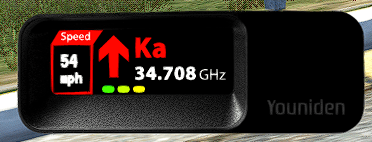
| Element | Meaning |
|---|---|
| North arrow | Radar source is ahead of you |
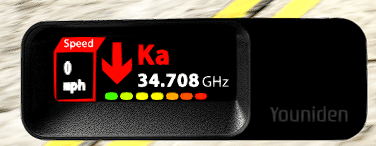
| South arrow | Radar source is behind you |
| Rings (1–8) | Proximity. Ring 1 (outermost) appears at 300 m. Each inner ring appears as the gap closes. All 8 lit = under 25 m. |
| AUTO | No active radar gun within 300 m |
| Speed | Your current speed in the selected unit |
The blip interval shortens as the gap closes — at 300 m it fires roughly every 1.5 s, at 25 m every 400 ms.
Move mode
Open /tDet and click Reposition HUD. The dialog closes and the HUD enters move mode (a dashed outline appears).
| Action | Effect |
|---|---|
| Drag | Move the HUD anywhere on screen |
| Scroll wheel | Scale the HUD up or down (0.3× – 2.0×) |
| Escape | Lock the position and exit move mode |
Position and scale persist in KVP and restore on every login.