
Editor
In-game LED placement, Arges spotlights, pattern sequencing, trigger rules, and siren configuration.
Overview
/telsedit opens the editor while you're in a vehicle (any seat). Requires the tlib.admin ACE.
Tab workflow
Work the tabs in this order — each builds on the previous one.
- LEDs — place (or auto-generate) the physical lights on the vehicle using a Three.js gizmo.
- Patterns — arrange those LEDs into frame-by-frame flash sequences with live preview.
- Triggers — compound condition rules that drive patterns, stages, and sirens from vehicle state.
- Sirens — tone slots, airhorn, rumbler, and chirp sounds.
- Settings — per-vehicle siren behavior (horn interrupt, park kill, suspend flags).
- Arges (optional) — attach and aim spotlight props.
All tabs share a single orbit camera. Press Enter at any point to save every tab at once; Escape to cancel without saving.
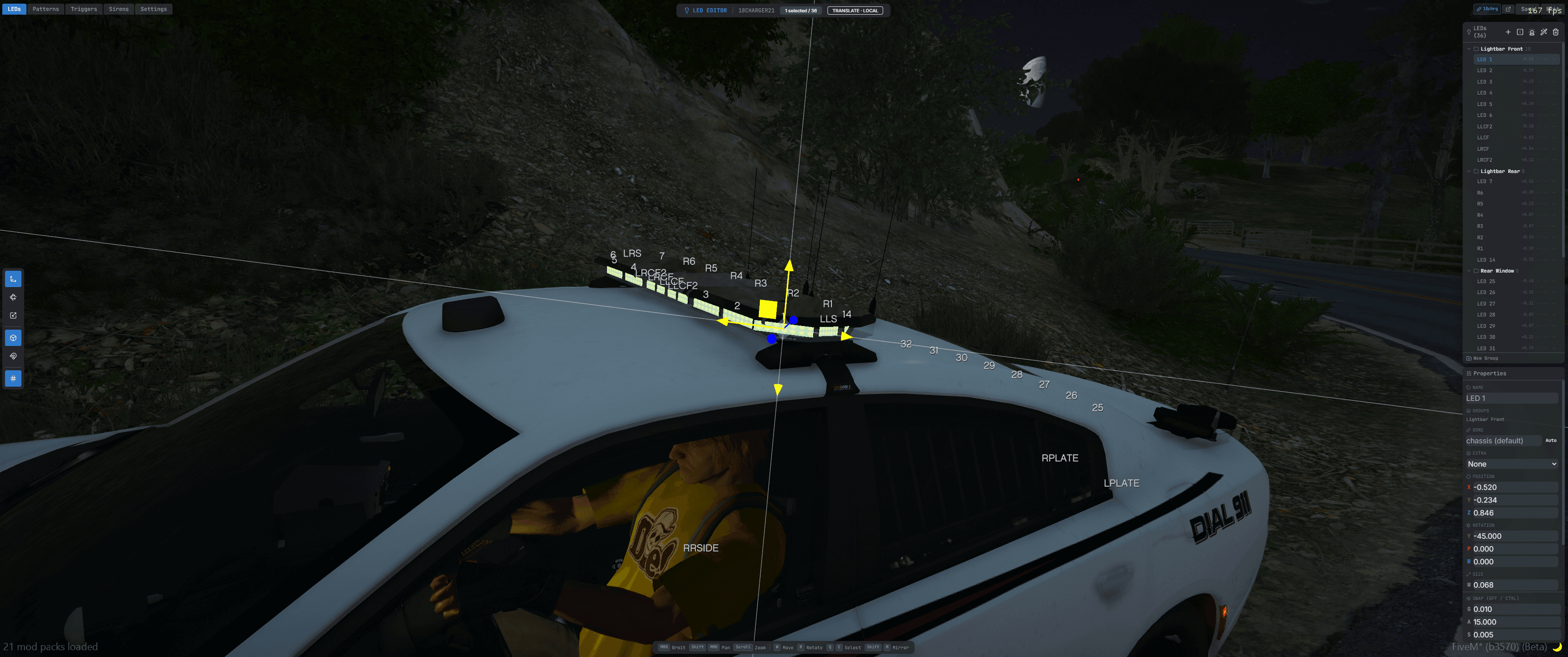
Camera controls
| Input | Action |
|---|---|
| Middle Mouse | Orbit around the vehicle |
| Shift + MMB | Pan |
| Shift + Ctrl + MMB | Dolly (zoom) |
| Scroll Wheel | Zoom |
View-snap buttons and a "focus on selection" control are available in the sidebar.
LEDs tab
Start here: Create from siren bones
New to a vehicle? Click Create from siren bones in the sidebar. tELS scans the vehicle's siren1…sirenN bones and drops a starter LED at each one, pre-grouped and sided. It's the fastest way to go from empty editor to a working lightbar — you can refine positions after.
Click any LED in the 3D viewport or the sidebar list to select it. The gizmo appears at the selection center. Hold Shift+click for range select or Ctrl+click to toggle individual LEDs in the selection.
LED properties
| Property | Description |
|---|---|
Position x, y, z | Local offset from the vehicle chassis, or from bone if one is set |
Rotation yaw, pitch, roll | Orientation in degrees — drives directional bloom / corona output |
Size sw, sh | Surface width and height in metres |
| Side | 1 Right, 2 Left, 3 Center — used by traffic-advisor patterns |
| Name | Display name (e.g., "Front Right 1") |
| Groups | Tags used to bulk-select and filter in the pattern editor |
| Bone | Optional vehicle bone name (e.g., siren1, door_dside_f) |
| Shape | rect (default) or circle |
| Bloom | sprite, corona, or both |
| Extra | Optional GTA vehicle-extra ID (1–15). LED only renders when that extra is enabled on the spawned vehicle. |
Identity
Every LED carries a 16-char hex UUID. Patterns reference LEDs by this UUID, never by name or array position — renaming, reordering, or regrouping LEDs never breaks a saved pattern.
Custom LED textures
By default tELS uses its built-in LED sprite. Vehicle resources can supply their own PNG texture by declaring it in their fxmanifest.lua:
tels_led_png 'textures/my_led.png'
files { 'textures/my_led.png' }
tELS discovers this automatically when the resource starts and makes the texture available in the LED editor's texture picker.
Bone attachment
When bone is set, x/y/z and yaw/pitch/roll are interpreted in the bone's local frame, so LEDs on doors, the hood, or the trunk move with those parts as they open.
Multi-select operations
With multiple LEDs selected you can:
- Move, rotate, or scale them together
- Duplicate (
Shift+D) - Mirror left-to-right around the vehicle's centerline (
Shift+M) - Swap positions (pairs)
- Delete (
DeleteorBackspace) - Batch-edit any shared property in the properties panel
Keyboard shortcuts (LEDs tab)
| Shortcut | Action |
|---|---|
| W / R / S | Switch the gizmo to translate, rotate, or scale |
| X | Toggle between world-space and local-space gizmo |
| Q / E | Select previous / next LED |
| Shift+D | Duplicate selected LEDs |
| Shift+M | Mirror selected LEDs |
| Delete / Backspace | Remove selected LEDs |
| Ctrl (held) | Temporarily toggle grid snap |
Global shortcuts (all tabs): Ctrl+Z / Ctrl+Y undo/redo · Enter save and exit · Escape cancel and exit.
Arges tab
Arges spotlights are attachable light props (base + head + arm) that track an aim direction. They're useful for roof-mounted worklights or side spotlights.
Each Arges entry has:
| Property | Description |
|---|---|
Position x, y, z | Anchor point on the vehicle |
Rotation rx, ry, rz | Base orientation |
| Arm | curve or straight — changes which arm prop is used |
| Bone | Optional bone attachment |
At runtime the player aims the head with Numpad 8/5/4/6. Aim angles sync to other clients via state bags, so everyone sees the same beam direction.
Patterns tab
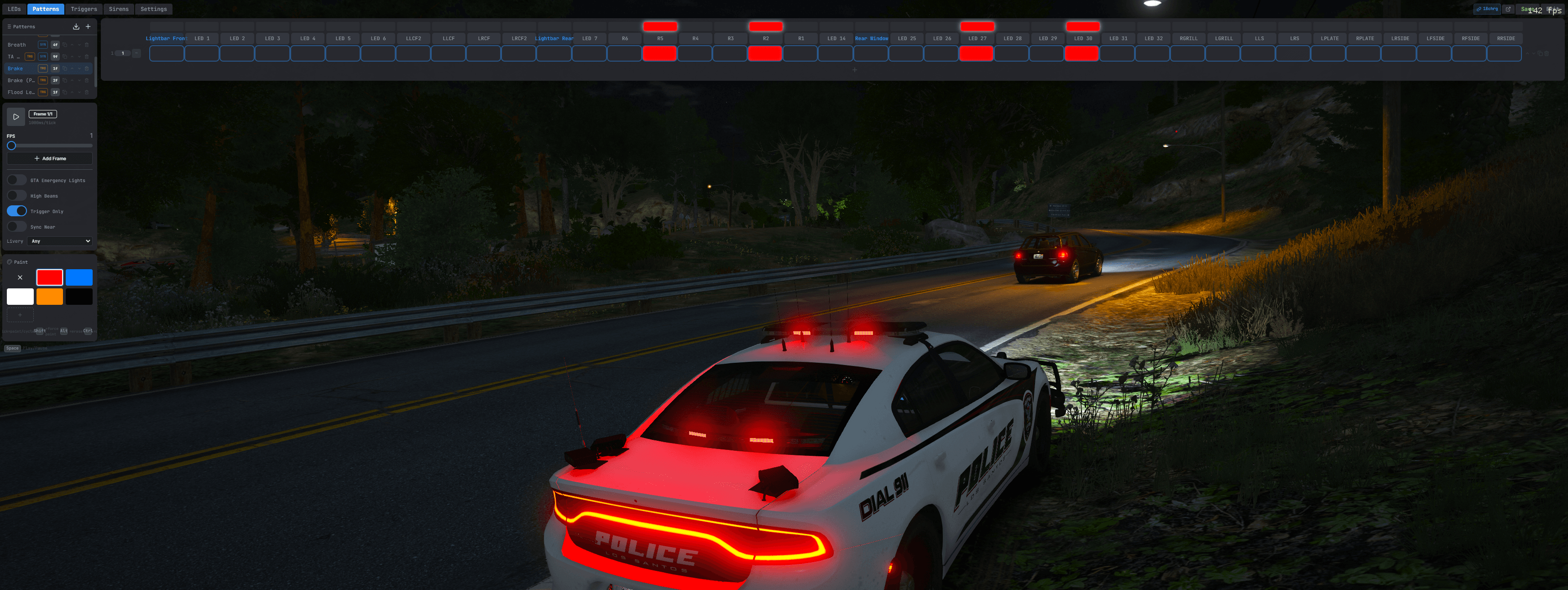
A grid sequencer — columns are frames, rows are LEDs. The pattern previews live on the vehicle as you edit.
Creating a pattern
Add the pattern
Click Add Pattern in the sidebar.
Set the FPS
All frame durations are measured in ticks at this rate.
Define the color palette
Add RGB colors with optional alpha and a name. Each pattern owns its own palette.
Paint cells
Click cells in the grid to assign colors. A cell value of 0 is off.
Color palette
Each pattern owns its palette. Palette entries have r, g, b, optional a, and a name. Cell values are 1-based indices into the palette.
Frame timing
Each frame has a duration in ticks. At 10 FPS, duration: 1 = 100 ms, 2 = 200 ms, etc.
Smooth dimming
Any cell can be marked dimmable — its color interpolates smoothly into the next frame instead of snapping. Click the ~ button next to a frame row to toggle dim on every cell in that frame at once.
Pattern options
| Option | Effect |
|---|---|
| Trigger Only | Hidden from 9/0 cycling. Only activatable via trigger actions. |
| Sync Near | All clients sync the frame index to a server-derived clock — everyone sees the same frame at the same time. Use for synchronized fleet patterns. |
| Use Emergency Lights | While this pattern is active, GTA's native emergency-lights flag is enabled (drives the red-blue environment tint the game applies to emergency vehicles). |
| Use High Beams | High beams are held on while this pattern is active. |
| Livery | Restricts this pattern to a specific livery index. Omit for any livery. |
Keyboard shortcuts (Patterns tab)
| Shortcut | Action |
|---|---|
| Space | Play / pause the live preview |
| Ctrl+Z / Ctrl+Y | Undo / Redo (global) |
Triggers tab
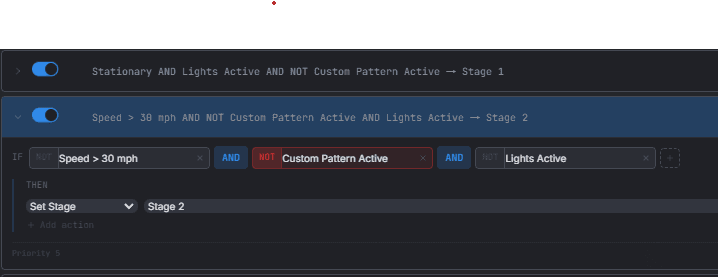
Each trigger is a rule: IF a compound of conditions is true, THEN run one or more actions.
Building a trigger
Add the trigger
Click Add Trigger in the sidebar.
Pick conditions
Add one or more conditions from the reference below, and choose AND (all must be true) or OR (any suffices).
Negate where needed
Toggle the NOT modifier on individual conditions for "only when X is not true".
Attach actions
Actions run in list order. Most triggers just overlay or switch a pattern; see the action reference below for the rest.
Order by priority
Drag triggers in the list to reorder. Pattern overlays stack in list order, so later triggers paint on top of earlier ones.
Condition reference
Lights & stages
| Condition | Fires when |
|---|---|
lights_on | Emergency lights active |
stage_1 / stage_2 / stage_3 | Vehicle is at that stage |
park_kill | Driver exited with sirens running; park kill fired |
chirping | Chirp tone is playing |
Audio
| Condition | Fires when |
|---|---|
siren | Any siren active (main, aux, or burst) |
main_siren_on | Main siren active |
aux_siren_on | Aux siren active |
rumbler | Rumbler variant playing |
airhorn | Airhorn playing |
horn_tap | Horn tapped (< 400 ms press) |
horn_double_tap | Horn double-tapped (< 600 ms between taps) |
horn_hold | Horn held (> 500 ms) |
siren_tone_1 … siren_tone_8 | Main siren is playing this specific tone |
Modes
| Condition | Fires when |
|---|---|
cruise | Cruise mode on |
takedown | Takedown mode on |
ta_left / ta_right / ta_center | Traffic advisor in that direction |
Vehicle state
| Condition | Fires when |
|---|---|
engine_on / engine_off | Engine running / stopped |
stationary | Speed below 2 mph |
speed_15 / speed_30 / speed_60 / speed_90 | Speed above that mph threshold |
headlights | Headlights on |
highbeam | High beams on |
day / night | In-game clock (night = 20:00–05:00) |
Controls
| Condition | Fires when |
|---|---|
brake | Brake pedal engaged |
handbrake | Handbrake engaged |
reverse | Reverse gear + actually moving backward |
turn_left / turn_right | Turn signal on |
hazards | Hazards on |
Doors
| Condition | Fires when |
|---|---|
door_fl / door_fr / door_rl / door_rr | That door is open |
hood | Hood open |
trunk | Trunk open |
any_door_open | Any of the above |
locked | Vehicle locked |
unlocked | Vehicle unlocked |
Steering & transmission
| Condition | Fires when |
|---|---|
steer_left | Steering wheel turned left more than 15° |
steer_right | Steering wheel turned right more than 15° |
rpm_25 / rpm_50 / rpm_75 | Engine RPM above 25%, 50%, or 75% |
gear_1 … gear_6 | Transmission in that specific gear |
Health
| Condition | Fires when |
|---|---|
vehicle_damaged | Body health under 900 |
flipped | Vehicle upside-down |
Occupancy
| Condition | Fires when |
|---|---|
driver_in_veh | Driver seat occupied |
passenger_front / passenger_rear | Specific seats occupied |
any_passenger | Any passenger seat occupied |
presence | Presence mode armed + on-foot player (not another tELS owner) in range |
presence_mode | Presence mode armed + owner away + vehicle locked |
Action types
| Action | Effect |
|---|---|
| pattern_overlay | Layer a pattern on top of the base while the rule is true. Overlays stack in list order. |
| pattern_set | Switch the base pattern on rising edge (once when the rule becomes true). |
| stage_set | Activate a specific stage (1–3). Rising edge only. |
| main_siren_set | Start the main siren on a specific tone. |
| aux_siren_set | Start the aux siren on a specific tone. |
| siren_overlay | Play a tone while the rule is true; stops automatically on false. |
| siren_next_tone / siren_prev_tone | Cycle the main siren's tone. |
| park_chirp | Fire a single park chirp (rising edge). |
| chirp_stop | Stop an in-progress chirp. |
| horn_play_airhorn | Play the airhorn while the rule is true (respects horn interrupt). |
| horn_play_vehicle_horn | Play the native vehicle horn while the rule is true. |
| arges_on / arges_off | Enable or disable the Arges spotlight. |
| arges_sweep | Run a sweep animation while the rule is true. |
| ers_pullover | Briefly activates GTA's native emergency-lights flag (visual only, audio muted) on rising edge. Use with ERS-compatible scripts that gate pullover detection on this flag. See Integrations → ERS. |
Rising edge vs held: actions like pattern_set, stage_set, park_chirp, and ers_pullover only fire the moment a rule becomes true. pattern_overlay, siren_overlay, and horn_play_airhorn run continuously while the rule is true and stop automatically on false.
Sirens tab
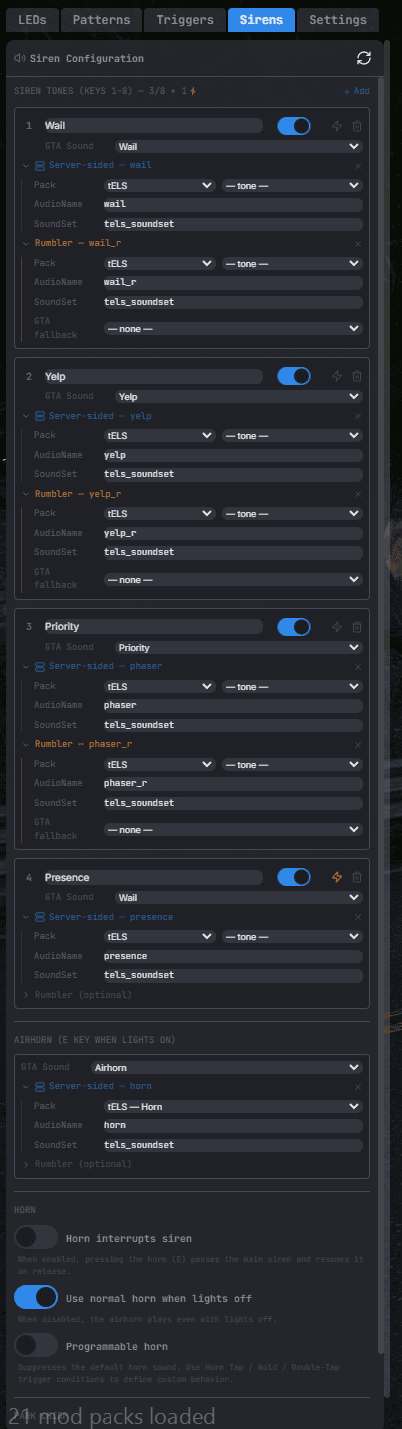
Tone slots
Up to 8 tone slots. Each slot:
| Property | Description |
|---|---|
| Name | Display name ("Wail", "Yelp", "Priority") |
| Sound | Vanilla GTA sound string (e.g., VEHICLES_HORNS_SIREN_1) |
| Server Sound / Server Sound Ref | Custom server-bundled audio. Used when Server-sided Sirens is on in /tels. |
| Rumbler Sound / Rumbler Server Sound | Alternate sounds when the rumbler mode is on. Only applies to the main siren. |
| Enabled | Off slots are skipped by every lookup |
| Trigger Only | Skipped by R, 1-8, and tone cycling, but usable by trigger actions |
Airhorn
Separate vanilla / server / rumbler-server fields for the airhorn. Falls back to the default SIRENS_AIRHORN soundset if nothing is configured.
Chirp
| Field | Description |
|---|---|
| Chirp Tone | Which tone slot plays on the park chirp |
Play Full Siren (chirpByCode) | Hold the tone for the entire chirp duration instead of short 75–125 ms blips. Use this when your audio file already contains the chirp envelope. |
Settings tab
Per-vehicle siren behavior. These apply only to the vehicle you're editing.
| Setting | Default | Description |
|---|---|---|
| Horn Interrupt | On | Main siren pauses while the airhorn plays, resumes on release |
| Park Kill | On | Sirens stop when the driver exits; fires the park_kill trigger condition |
| Use Normal Horn | On | E plays the native vehicle horn when lights are off. Turn off to make the airhorn play regardless. |
| Programmable Horn | Off | Skip the default horn/airhorn audio and interrupt. Triggers drive the horn with horn_tap / horn_hold / horn_double_tap. |
| Lights Suspend TA | On | Traffic advisor suspends when lights activate |
| Lights Suspend Takedown | On | Takedown suspends when lights activate |
| No User Controls | Off | Disables all player keybinds (Q, R, 1–8, Alt, etc.) for this vehicle. Useful for display or cinematic vehicles where lights are driven entirely by triggers or external scripts. |
| Disabled Extras | — | Comma-separated list of GTA vehicle extra IDs (1–12) to force off on this vehicle. |
Cross-vehicle references
Open the reference menu on any pattern, trigger, siren, or settings block to import it from another vehicle model instead of duplicating.
- Imported items display a link icon; items referenced by other vehicles display a share icon.
- Editing a referenced pattern or trigger edits the source. Changes propagate to every vehicle that references it.
- Bulk references (
$all) import every non-referenced pattern or trigger from the source in one go.
See Configuration › Cross-Vehicle References for the underlying data format.
Saving
Save persists all tabs at once to data.json and broadcasts the updated config to every client. If you edited a referenced pattern or trigger, a separate ref-edit event is sent to update the source.
Undo history clears on save.