
Dispatch Panel
Setup and usage guide for the Tommy's Radio dispatch panel.
Overview
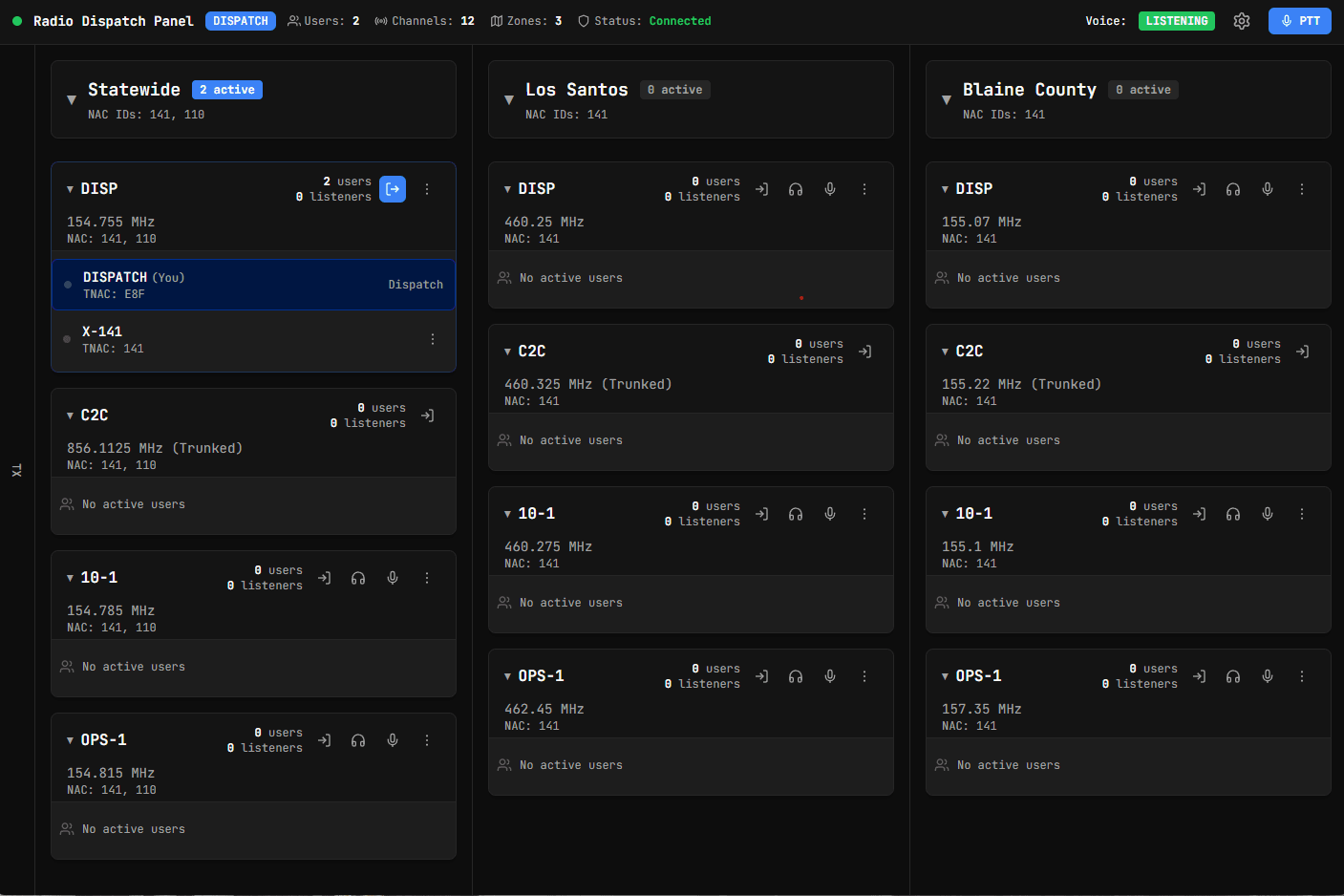
The dispatch panel is a real-time communication management interface for dispatchers. It connects to your radio voice server and provides full control over zones, channels, units, alerts, and voice transmission.
The panel is served directly by your radio server at http://your-server-ip:port/ and can be accessed from a web browser or the dedicated desktop app.
Accessing the Panel
There are two ways to use the dispatch panel:
Desktop App (Recommended)
- Automatic microphone access (no HTTPS required)
- Global push-to-talk with any key or mouse button
- Auto-updates when the server updates
- Download from the Settings page of the panel, or from
http://your-server-ip:port/radio/dispatch/installer
Web Browser
- No installation required
- Microphone requires HTTPS or a Chrome flag
- PTT limited to keyboard key T (no global capture)
- Open
http://your-server-ip:port/in your browser
Desktop App Setup
Download and install
Open the dispatch panel in your browser at http://your-server-ip:port/. Go to Settings and click Download under Desktop App. Run the installer.
Alternatively, navigate directly to http://your-server-ip:port/radio/dispatch/installer to download.
Configure the endpoint
On first launch, the app will ask for your server endpoint. Enter http://your-server-ip:port and click Save.
Login
Enter your dispatchNacId from config.lua (default: 141). If Discord auth is enabled, click the Discord login button instead.
The desktop app automatically updates when the server version changes. If a version mismatch is detected, an Update button appears in the header bar.
Web Browser Setup
Browsers block microphone access on HTTP pages. To use voice transmission in the browser, you need one of:
| Method | Use Case |
|---|---|
| Chrome flag | Development / local testing. Set chrome://flags/#unsafely-treat-insecure-origin-as-secure to your server URL. Guide |
| HTTPS reverse proxy | Production. Set up SSL with Nginx or Apache in front of your server. |
Without one of these, voice transmission will not work. The panel will show a Mic denied warning with a link to download the desktop app.
Authentication
NAC ID (Default)
The dispatch panel uses a NAC ID as a password. Set it in config.lua:
dispatchNacId = "141", -- Change this to a secure valueDiscord OAuth
Replace NAC ID authentication with Discord login. Only members of your Discord server (optionally filtered by role) can access the panel.
Enable in config
Set useDiscordAuth = true in config.lua.
Create Discord application
Go to the Discord Developer Portal and create a new application.
Add redirect URI
In your app's OAuth2 settings, add this redirect URI:
http://your-server-url:port/radio/dispatch/authConfigure environment
Create server/.env (copy from server/.env.example):
DISCORD_CLIENT_ID="your_discord_client_id"
DISCORD_SECRET="your_discord_secret"
DISCORD_GUILD_ID="your_discord_guild_id"
DISCORD_ROLES=""              # Comma-separated Role IDs, or "" for all members
DISCORD_REDIRECT_URI=""       # Leave empty unless using a reverse proxy
Getting Discord IDs
Enable Developer Mode in Discord (User Settings > Advanced) to copy Server/Role IDs by right-clicking. Leave DISCORD_ROLES empty to allow all server members.
Panel Features
Zones and Channels
The panel displays your radio zones as collapsible sections, each containing their channels. Each channel shows:
- Connected units with their callsigns
- Listener count (users scanning the channel)
- Active transmissions highlighted in real time
Unit Management
Drag & Drop
- Drag users between channels to reassign them
- Drag your own name to switch channels
- Reorder channels within zones
Context Menu
- Click the hamburger menu on a user to:
- Disconnect them from radio
- Send a direct alert
- Set their in-game callsign (if callsign system is enabled)
Voice Transmission
Hold T (default) or click and hold the PTT button to transmit. The dispatch panel uses the same voice server as in-game radios — dispatchers hear the same P25/analog FX processing that players do.
The PTT key is configurable in Settings. The desktop app supports any keyboard key or mouse button for PTT, with global capture (works even when the app is not focused).
Alerts and Tones
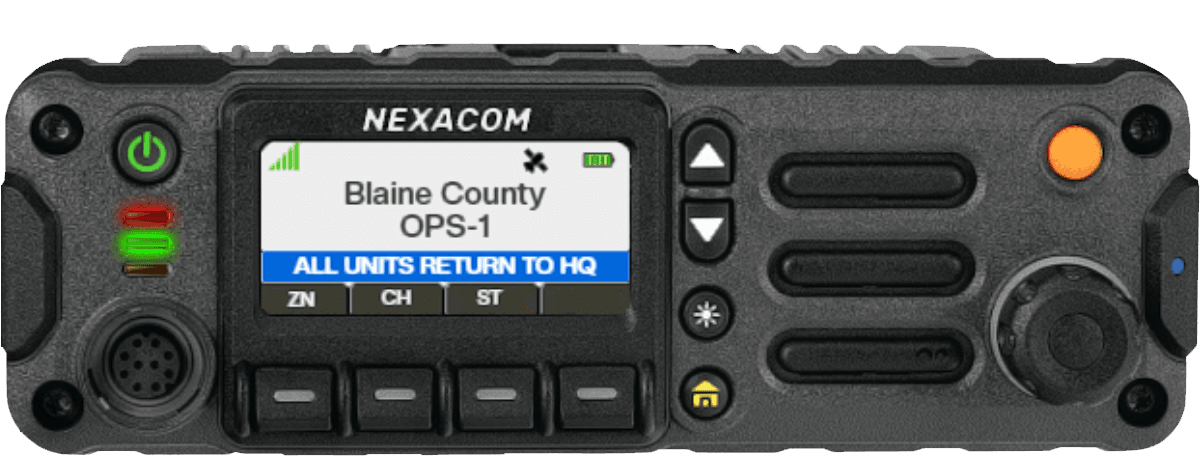
- Channel alerts — Send alert tones to specific channels
- Unit alerts — Send alerts directly to individual dispatchers
- Panic alerts — View and manage active emergency alerts
- Broadcast — Send system-wide announcements to all connected players
- Custom tones — Configure alert tones in
client/radios/default/tones.json
Transmission Log
The panel keeps a running log of all radio transmissions with timestamps, frequencies, and caller IDs. The log can be:
- Filtered by channel or zone
- Collapsed to save screen space
- Popped out into a separate window (desktop app only)
Settings
| Setting | Description |
|---|---|
| PTT Key | Key or mouse button for push-to-talk |
| SFX Volume | Volume for alert tones and UI sounds |
| Voice Volume | Volume for incoming voice transmissions |
| Theme | Visual theme for the panel |
| Transmission Log | Toggle and filter the TX log |
| Auto-collapse Channels | Collapse empty channels automatically |
| Endpoint | Server URL (desktop app only) |